|
Virtuemart PayPal Pro |

v1.3.44 - 13 April 2023 |
PayPal Pro Plugin
includes PayFlow, PDS2
Payments can be taken from any country in the world. Screenshots Customer View The entire order process begin and ends on the merchant's website. The customer enters their credit card details directly on to a page on the merchants site. The billing address is part of the credit card verification process, and so it is shown above the card details where it can easily be edited. Depending on your template and the layout you choose you may wish to display the shopping cart totals next to the card details. 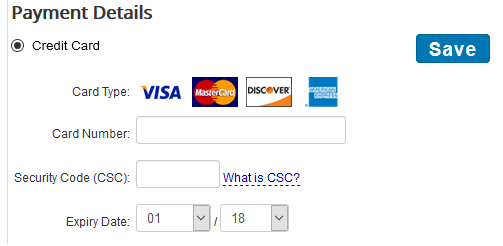 Automatic Formatting of Credit Card Numbers Spaces are automatically added to the credit card number as the user types them in. 16-digit cards such as VISA, MasterCard, Discover have spaces inserted every 4th digit while 15-digit AMEX cards are auto formatted a 4-6-5 pattern. This makes the number on the order form match exactly what the user see on their card. Automatically formatting the numbers in this manner has been shown to reduce card validation errors and increase conversion rates.  Automatic Detection of the Type of Credit Card PayPal Pro can work out the type of a credit card from its first digits, which are unique to each card. The plugin uses these to display the correct logo for the type of card used. The customer does not need to enter which type of card they are using, helping speed up the ordering process. In the example below, a Visa Card has been detected. 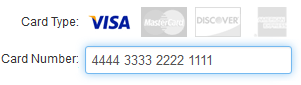 Customer View: Order Confirmation Page. After the order is completed the shopping cart is emptied. A thank you message is shown with the order details, totals and currency used. 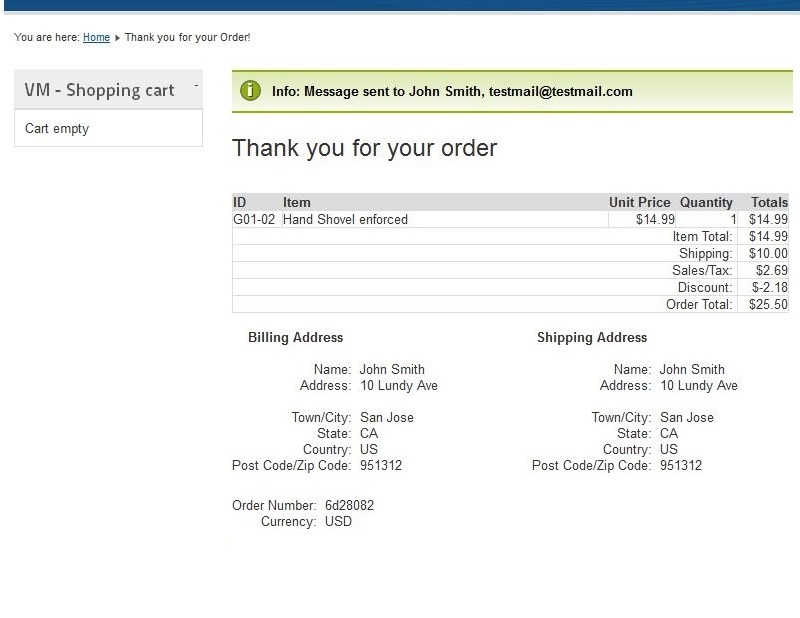 Merchant View Virtuemart Setup and Configuration. This is set up using the merchants API Username, Password and Signature which can be found in their PayPal account. See details below. 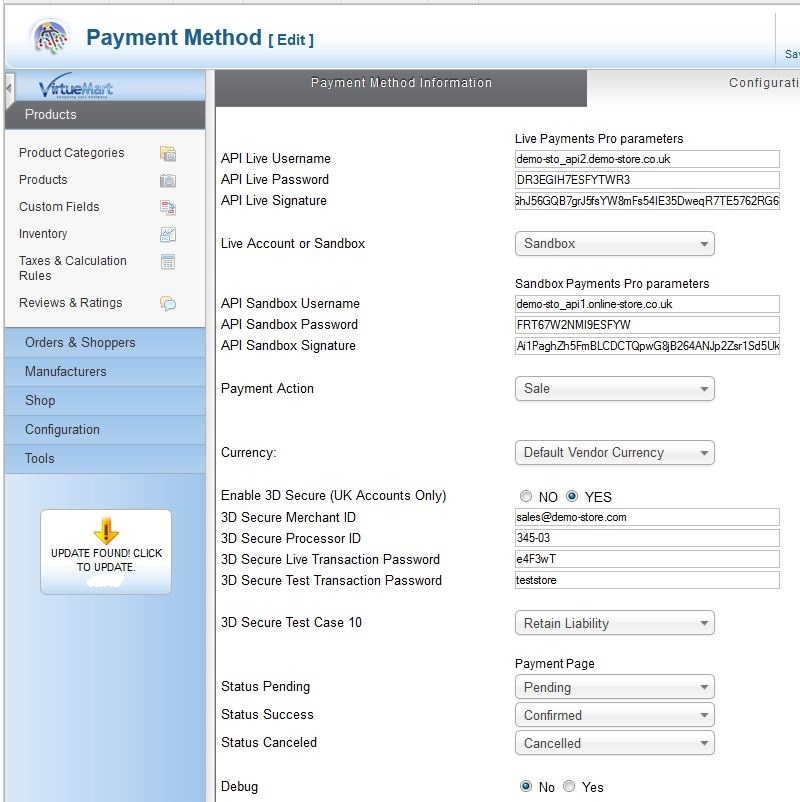 Please note:
Finding your PayPal API details Log in to PayPal. Click on "My Account" then "Profile".  Look under the "My selling preferences" section Click update "API Access" 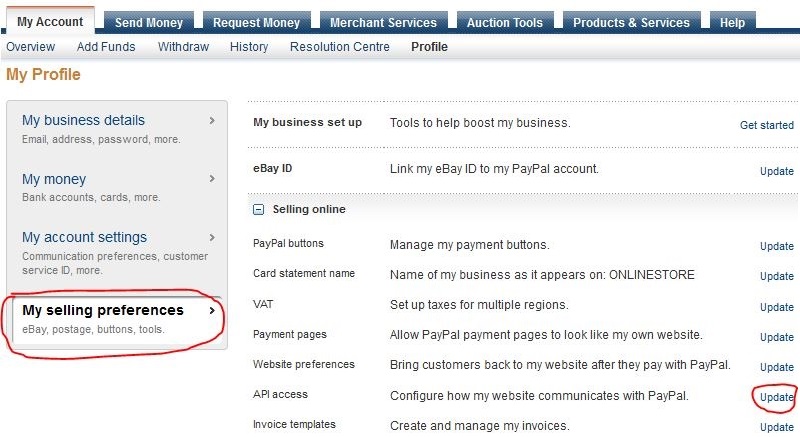 Select "Request API Credentials" 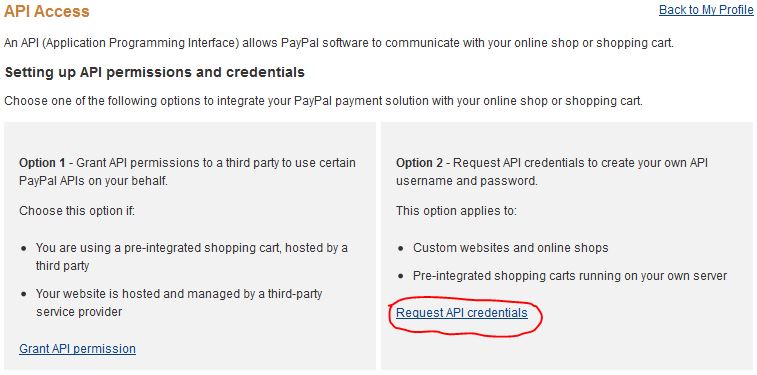 Select "Request an API Signature". 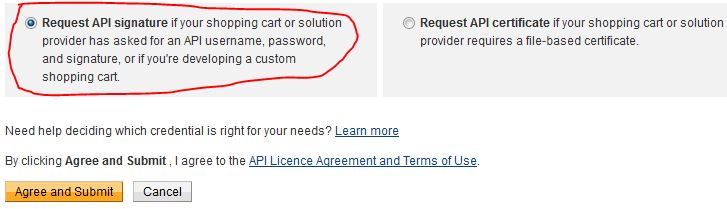 PayPal will then create and display an API Username, Password and Signature. You can then cut and paste these into the shopping cart setup program. 3D Secure UK merchants should sign up for 3D Secure which makes their store PSD2 compliant. |